
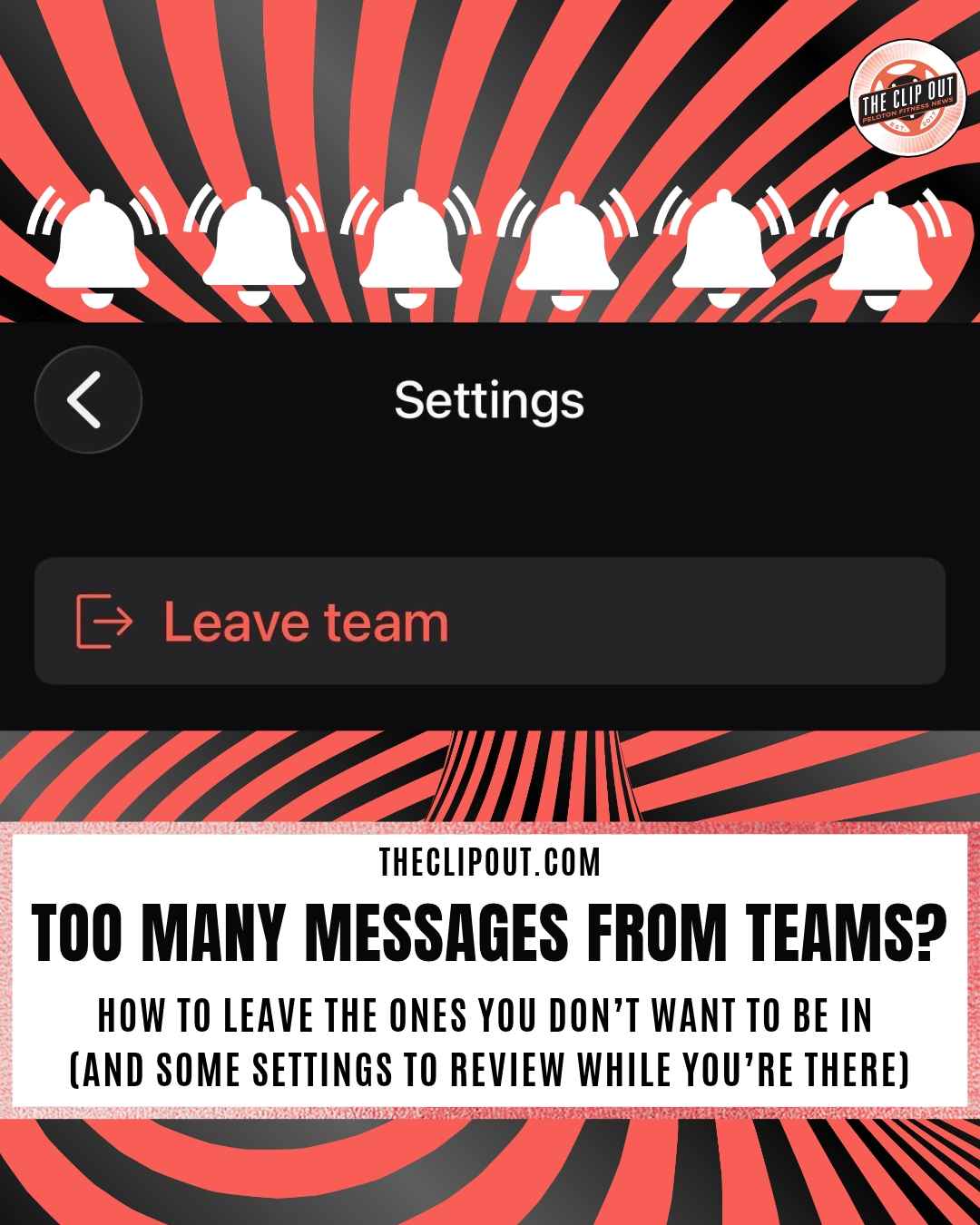
How to Leave a Peloton Team: 4 Steps to Stop the Messages
How to Leave a Peloton Team: Essential Steps and Privacy Facts
A member question about team messages shows where the leave option sits in the Peloton App and what teammates can see about you.
Members who want to leave a Peloton team are running into the same problem: the option is hard to find. A post on the Official Peloton Member Page on Tuesday, November 10, 2026 shows how it plays out. A member joined a team in the app, started receiving a steady stream of team messages, and could not locate a leave button anywhere.
Sound familiar?
Another member replied with the path, and it takes four steps. The exchange is also a reminder of how Teams works, because the feature that connects members also controls what they see and what teammates can see about them.
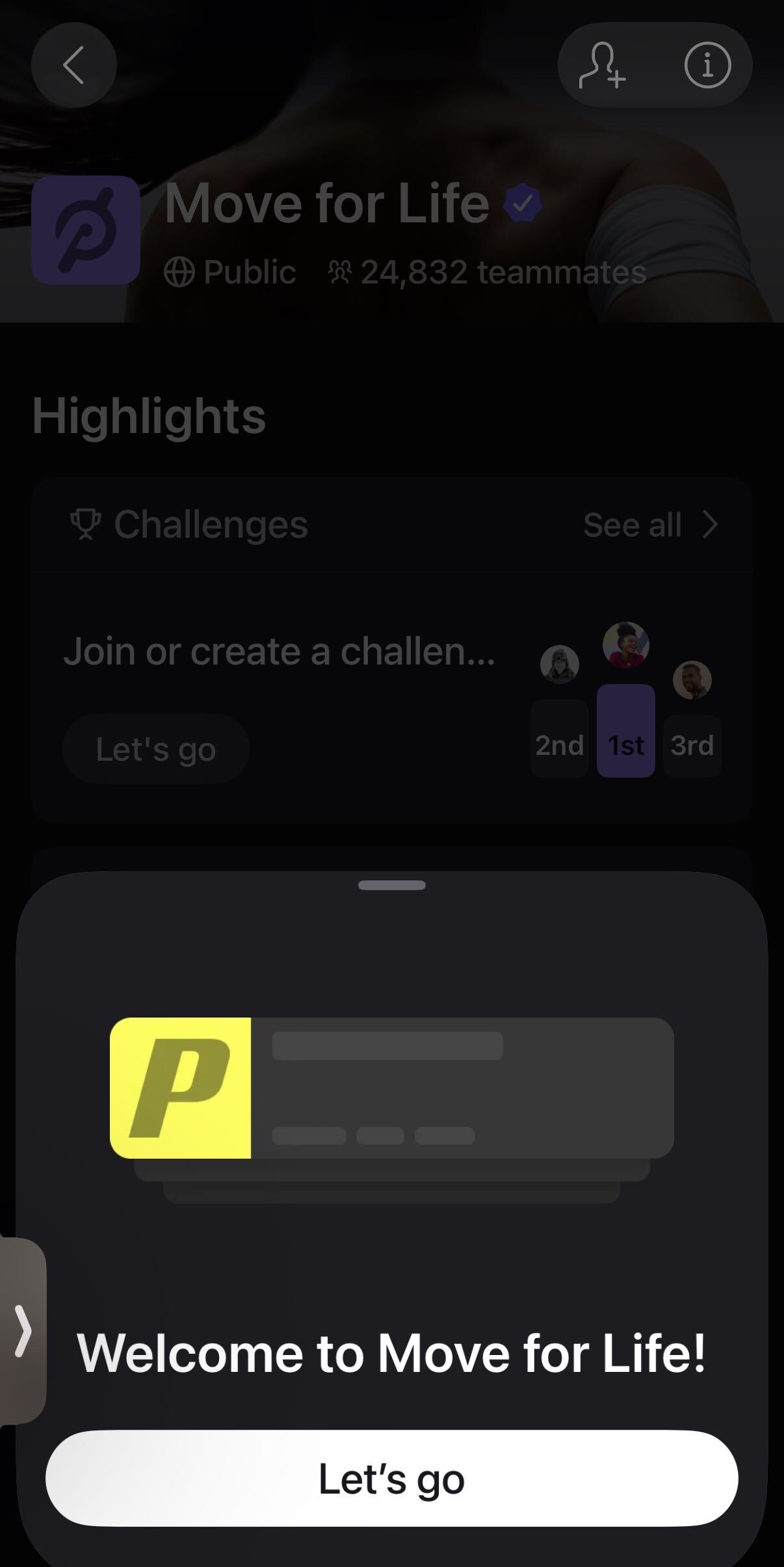
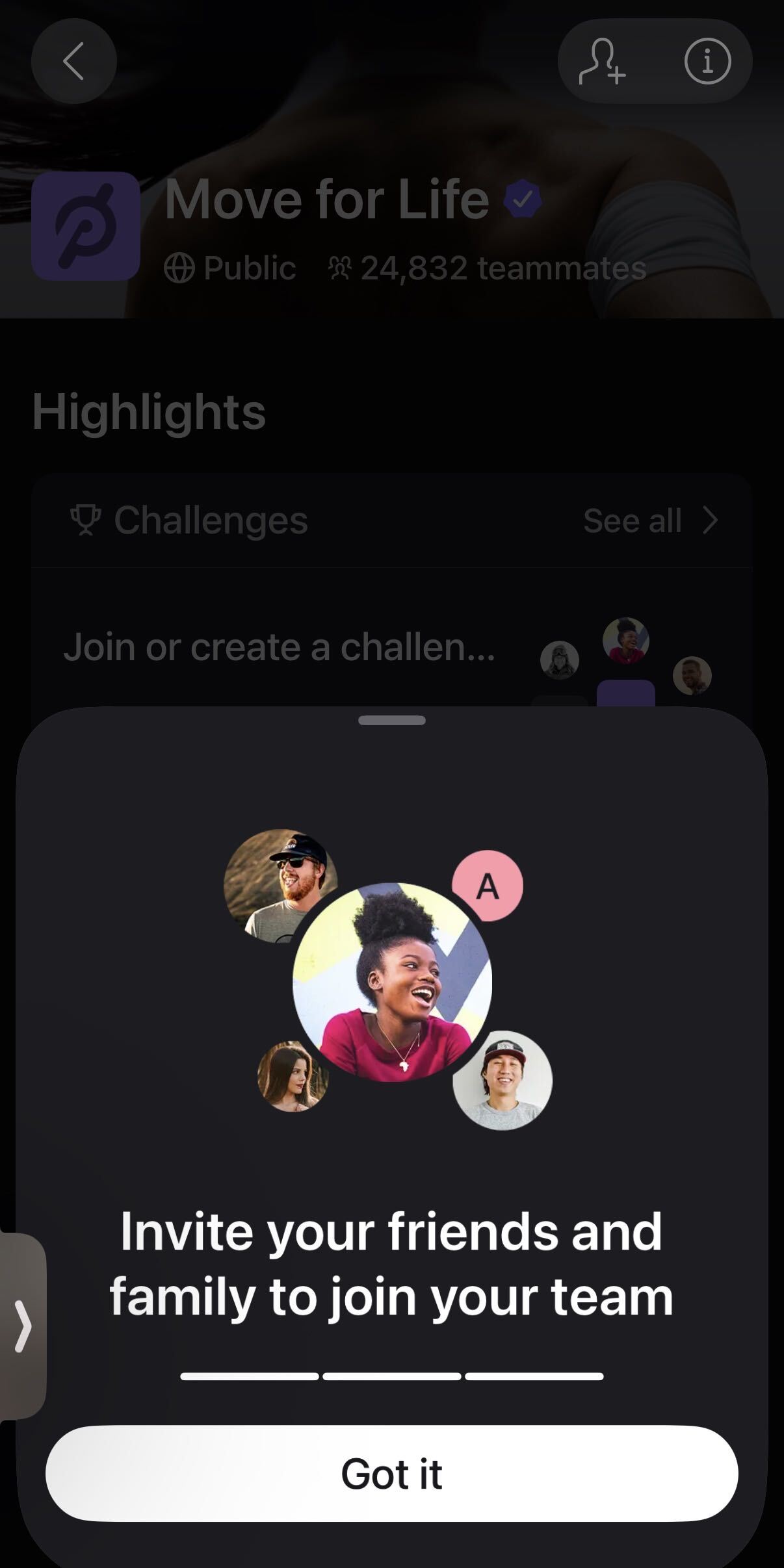
How to Leave a Peloton Team in the App
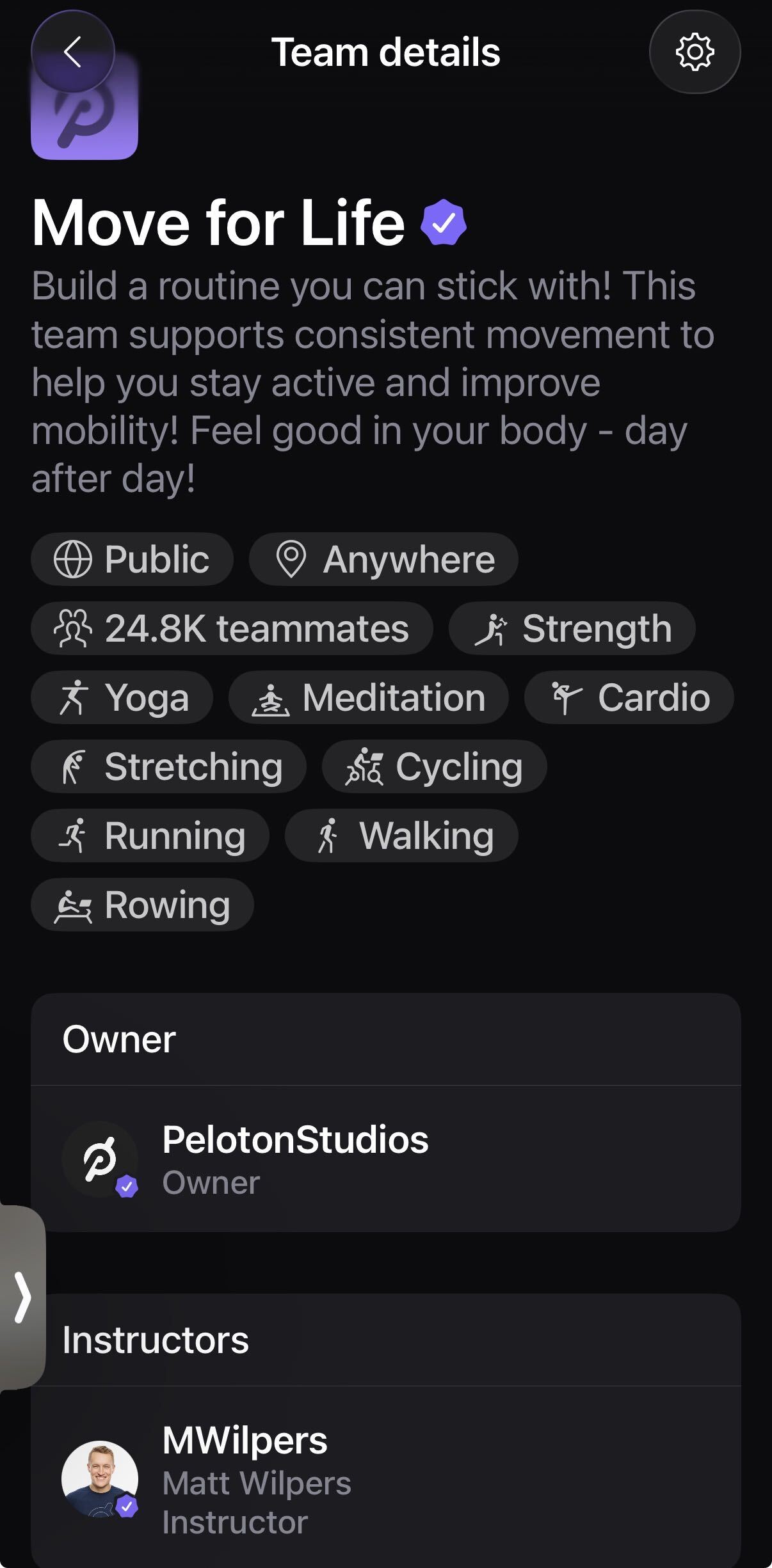
-
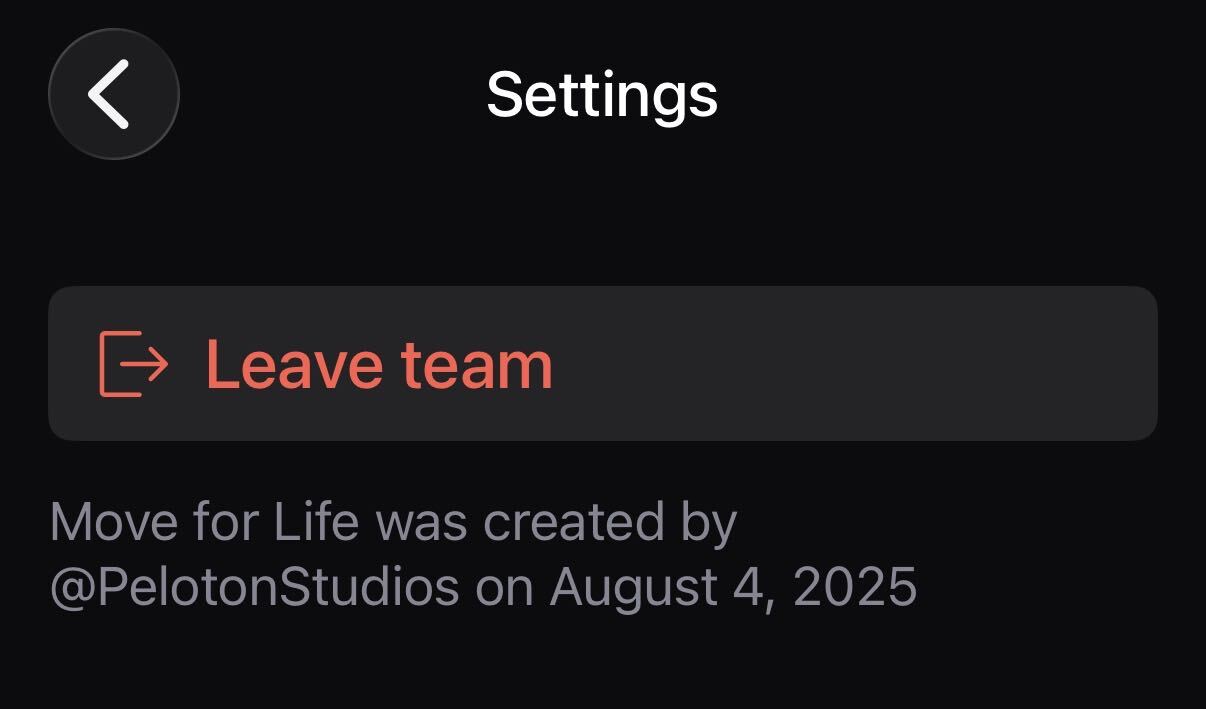
- After clicking the “i” icon, clicking the gear icon will bring you to this screen, where you can select Leave team
Teams is available only on the Peloton App for iOS and Android. Here is how to leave a Peloton team:
- Open the team you want to leave under Your Teams.
- Tap the circle with the i in the top right.
- Tap the gear icon in the top right.
- Tap Leave Team.
Interestingly, Peloton’s Teams support article does not list these steps, although it does give other useful reminders about engagement on the Peloton app.
Why Team Notifications Show Up
If you have Notifications turned on for Peloton, you will receive Team notifications too. That’s important to rememebr because a team feed can include posts, comments and @mentions, and Teams has become a more active part of the app. A busy team can make a new member feel buried in alerts quickly. Choosing to leave a Peloton team is one fix, and reviewing your Peloton Notifications setting is the other place to start.
What Teammates Can See About You
Joining a team changes your visibility. Teammates can see your profile information along with aggregate workout details, including time spent working out, total active days and total number of workouts. Other members can see distance and fitness discipline if you join a team challenge. Switching your profile to Private does not change what teammates see.
People outside the team see only the team name and the number of members. Members you have blocked can still join a team you are on, but your results on weekly stats and challenges appear to them as Peloton Member.
Public and Private Teams Work Differently
Anyone can join a public team and see what it is doing. A private team requires an invitation or admin approval, and a private team cannot be made public later. Private teams are either visible or hidden. A visible team can be searched by other members and may be featured for members in the app. More on this update can be found here.
Teams can hold up to 50,000 participants, so activity levels vary. If you use Hide Me from Search, teammates cannot find you through a team invite search, but you can still request to join from a share link, which requires admin approval. Checking the privacy setting first means fewer reasons to leave a Peloton team later.
One detail is worth knowing before you go. Your posts stay on the team feed after you leave, and only deleting a post or comment removes it. Delete anything you do not want left behind before you leave a Peloton team. Team owners face a different rule: ownership cannot be transferred, and if an owner deletes their Peloton account, the team disappears.
How has your experience been with Peloton teams?
The Clip Out is an independent Peloton news site with reporting, analysis, and community insights. We deliver breaking updates, feature reporting, and expert context on the stories driving the community and the industry.
Our weekly podcast offers deeper conversation and perspective, and you can find us on Apple Podcasts, Spotify, iHeart, TuneIn, and YouTube Music. You can also follow us on our socials on Facebook, Threads, Instagram, BlueSky, and YouTube.
See something in the Peloton universe that you think we should know? Visit us at theclipout.com and submit a tip.
About the Author: Elizabeth Schlosberg



Subscribe
Keep up with all the Peloton news!