Peloton Form Feedback Explained in 6 Easy On-Screen Steps
A six-step in-class tour on the Cross Training Tread+ walks members through Peloton form feedback, rep tracking, streaks, and weight updates before the first rep.
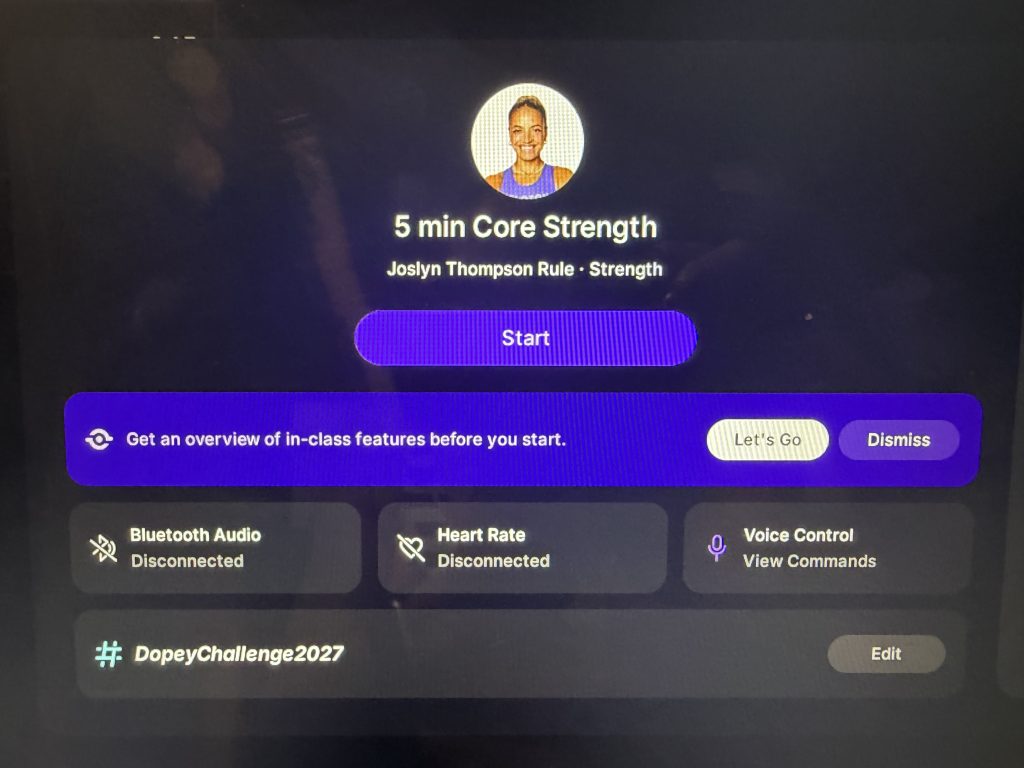 Peloton form feedback now comes with its own on-screen walkthrough. Before starting Joslyn Thompson Rule’s 5 min Core Strength class on the Cross Training Tread+ this morning, Friday, October 16, 2026, a prompt offered an overview of in-class features with two choices: Let’s Go or Dismiss.
Tapping Let’s Go opens a six-step tour layered over a sample full body strength class. Each step points to a different part of the Peloton IQ strength experience on screen. Anyone who used the Peloton Guide will recognize much of it.
The Guide brought a camera, Movement Tracker, and form indicators to strength training before Peloton ended Guide sales on July 30, 2025. Those camera-powered tools now sit inside the Cross Training Series, and the tour shows how they fit together on a single screen. 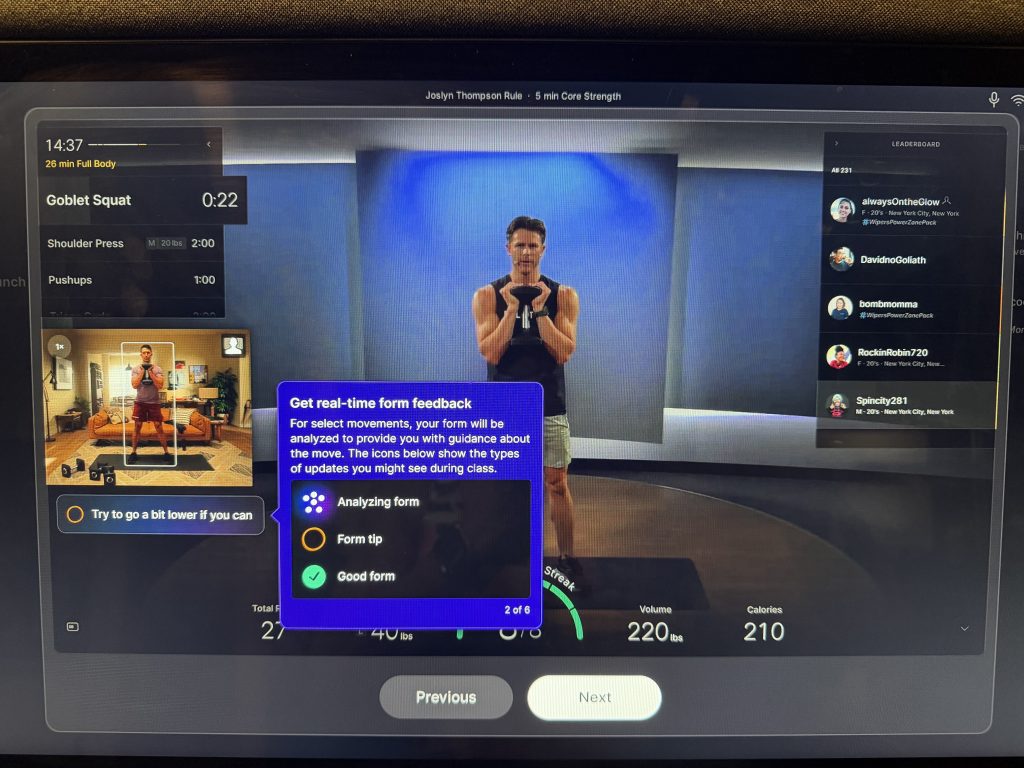
How Peloton Form Feedback Works in Class
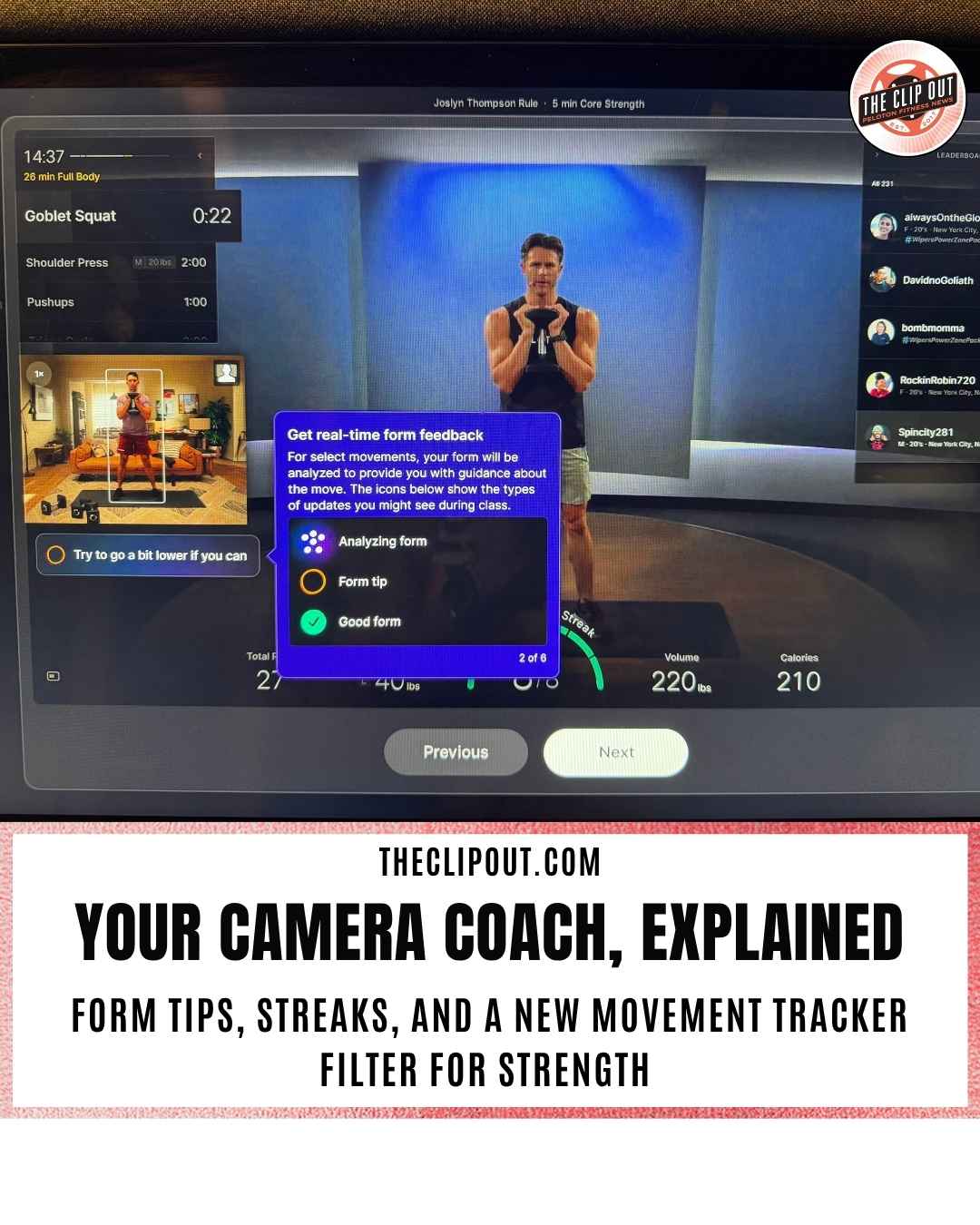
Step two of the tour covers Peloton form feedback directly. For select movements, the camera analyzes your form and offers guidance about the move in real time. Three icons show what the system is doing at any moment:
• Analyzing form: the camera is reading your movement
• Form tip: a correction is ready, such as “Try to go a bit lower if you can” during a goblet squat
• Good form: your movement checks out
Form tips appear in a small banner just below the self-view window, which keeps the correction close to your own image. Peloton form feedback on the Guide used a similar three-indicator system, with Analyzing Form, Form Needs Attention, and Good Form labels. 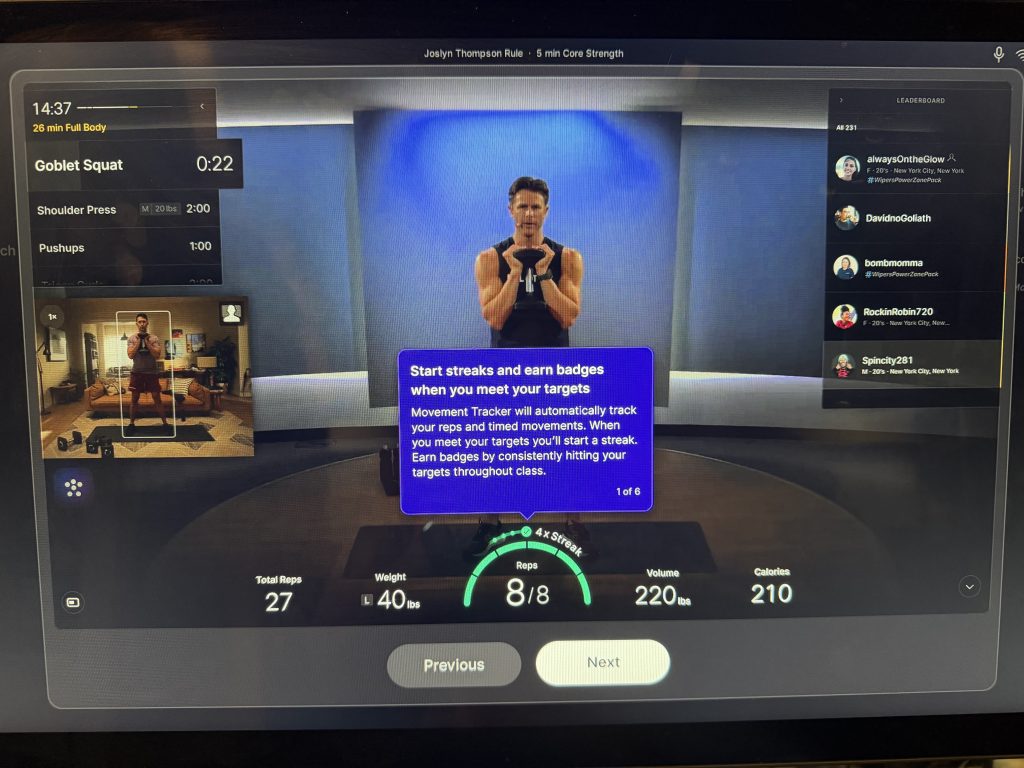
Movement Tracker Streaks and Badges
The tour opens with Movement Tracker, the Peloton IQ tool that automatically tracks reps and timed movements. Meeting your targets starts a streak, and hitting them consistently throughout class earns badges.
In the sample class, a rep gauge at the bottom of the screen reads 8 of 8 with a 4x Streak label above it. The metrics bar also displays Total Reps, Weight, Volume, and Calories, so rep counts and Peloton form feedback cues share the same view.
Body Position and Self-View Options
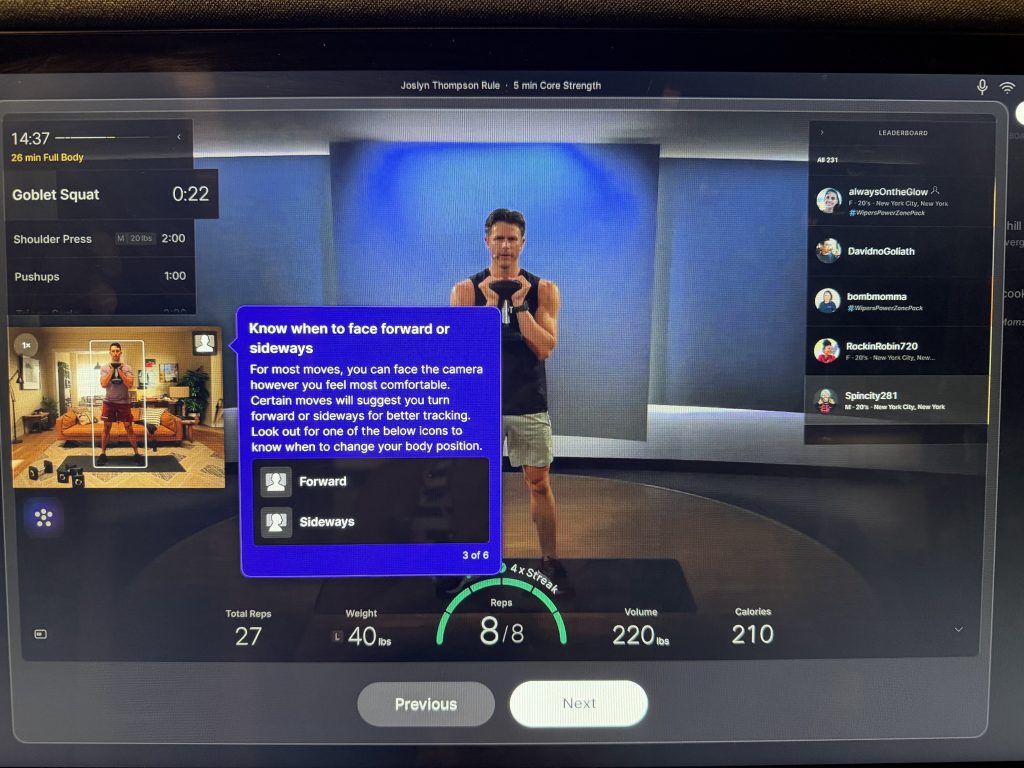
Step three answers a common camera question: which direction to face. For most moves, you can face the camera however feels most comfortable. Certain moves will suggest turning forward or sideways for better tracking, flagged by Forward and Sideways icons.
Position affects how well Peloton form feedback can read a movement. Early Guide testers noticed the device wanted them sideways for squats, and these icons make that kind of request visible in the moment. 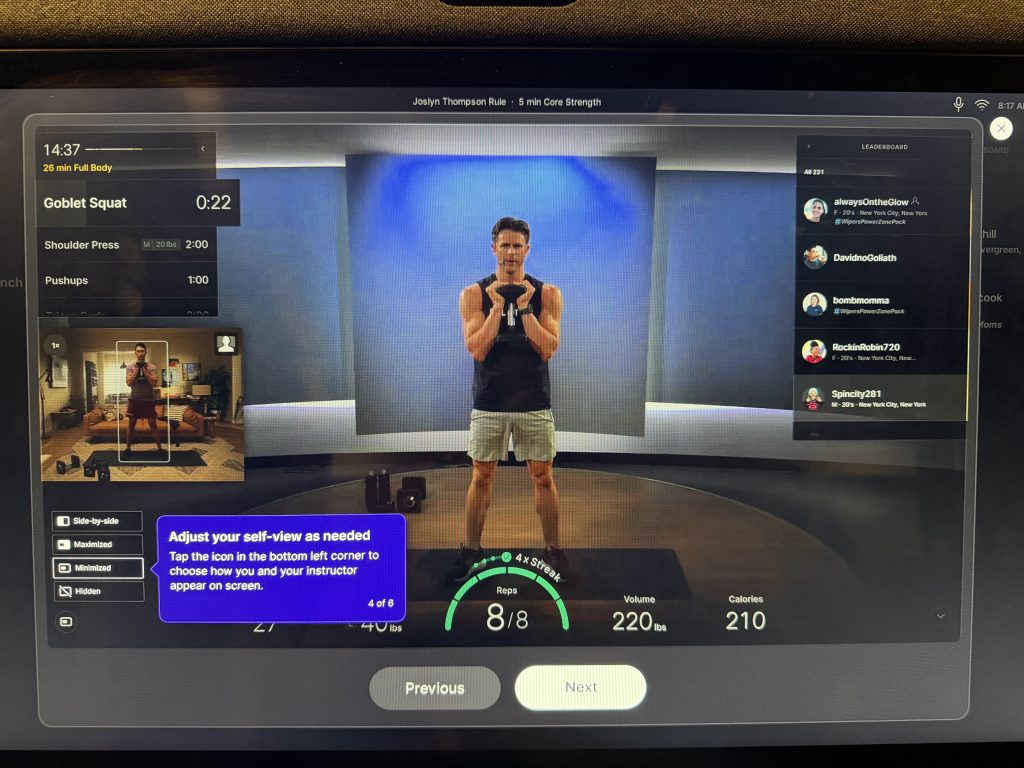
Step four covers self-view. Tapping the icon in the bottom left corner lets you choose how you and your instructor appear on screen: Side-by-side, Maximized, Minimized, or Hidden.
Peloton IQ Weights and the Workout Timeline
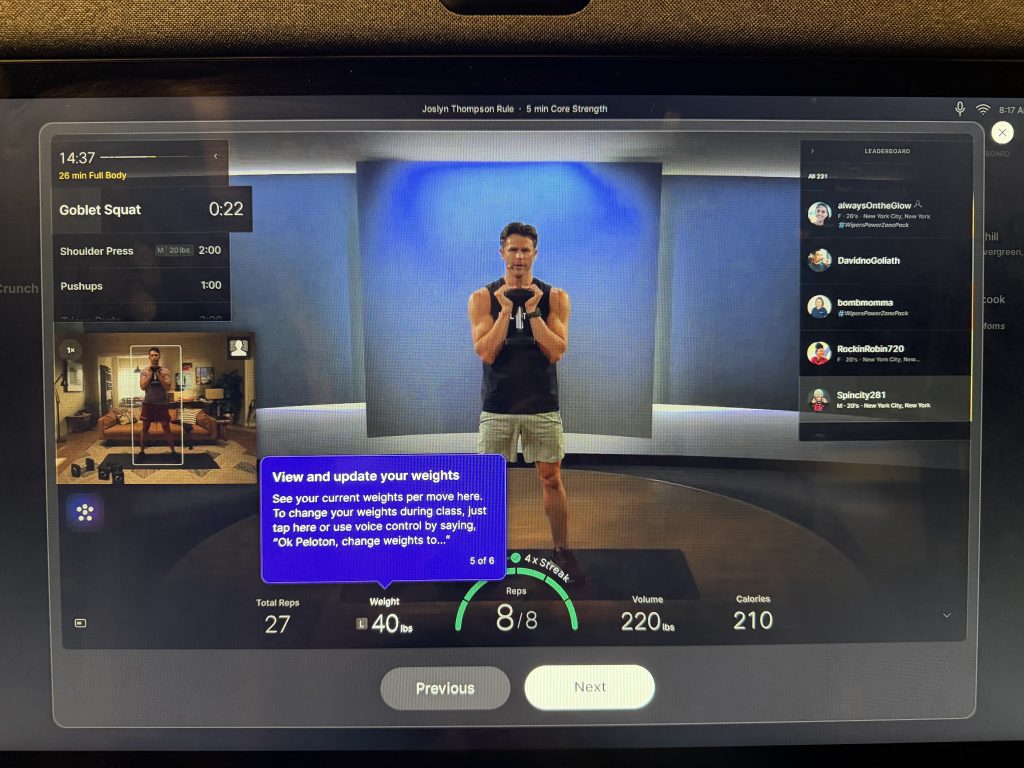
Step five shows where to view and update your weights for each move. You can tap the weight display during class or use voice control by saying, “Ok Peloton, change weights to…” The pre-class screen also includes a Voice Control tile with a shortcut to view commands.
Step six highlights the workout timeline in the upper left corner. It lists your current move, time remaining, upcoming exercises, and recommended weights, so the next exercise and its suggested load are visible before it begins. In the sample class, a Shoulder Press marked at 20 lbs followed the Goblet Squat, with Pushups next in line. 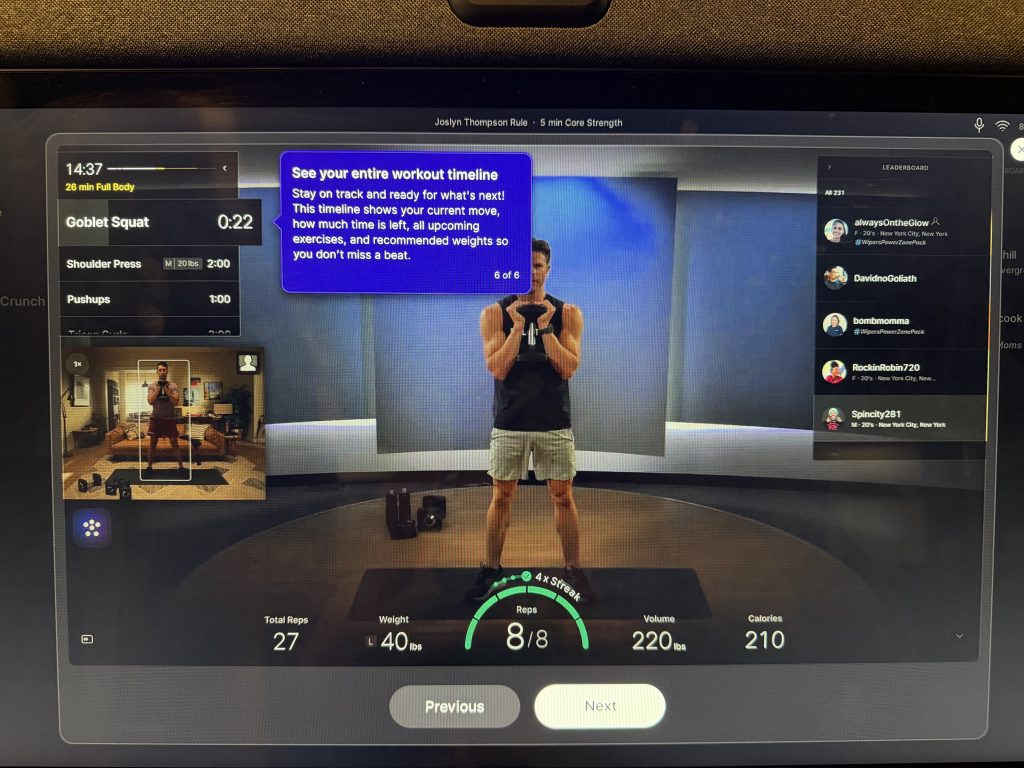
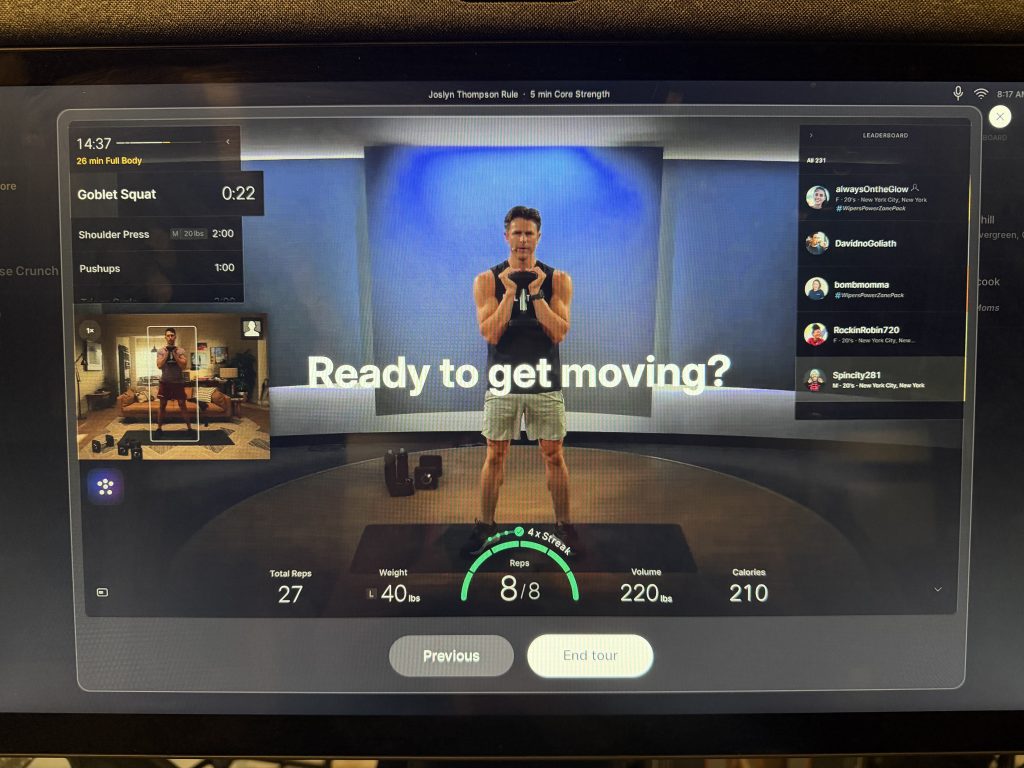
Between weight suggestions, rep counts, and Peloton form feedback, the timeline keeps the full workout in view. The tour ends with a “Ready to get moving?” screen and an End tour button, followed by a Start button to begin class.
How to Turn On Peloton Form Feedback
Peloton form feedback runs on the Movement-Tracking Camera, which Peloton offers on the Cross Training Bike+, Tread+, and Row+, along with the new Tread Vision and Tread+ Vision that arrived October 1, 2026. The folding Tread Flex does not include the camera, so it does not offer the feature.
On the Cross Training Tread+, rotate the camera module downward above the screen. On the Vision models, flip open the camera shutter at the top of the screen. Then go to Profile Settings, Preferences, and turn on Display Form Feedback, according to Peloton.
Peloton says the feature works during thousands of movement tracking-enabled instructor-led strength classes, including some live classes, as well as all self-paced strength workouts. Returning members can tap Dismiss on the pre-class prompt to head straight into class.
Finding Classes With Movement Tracker
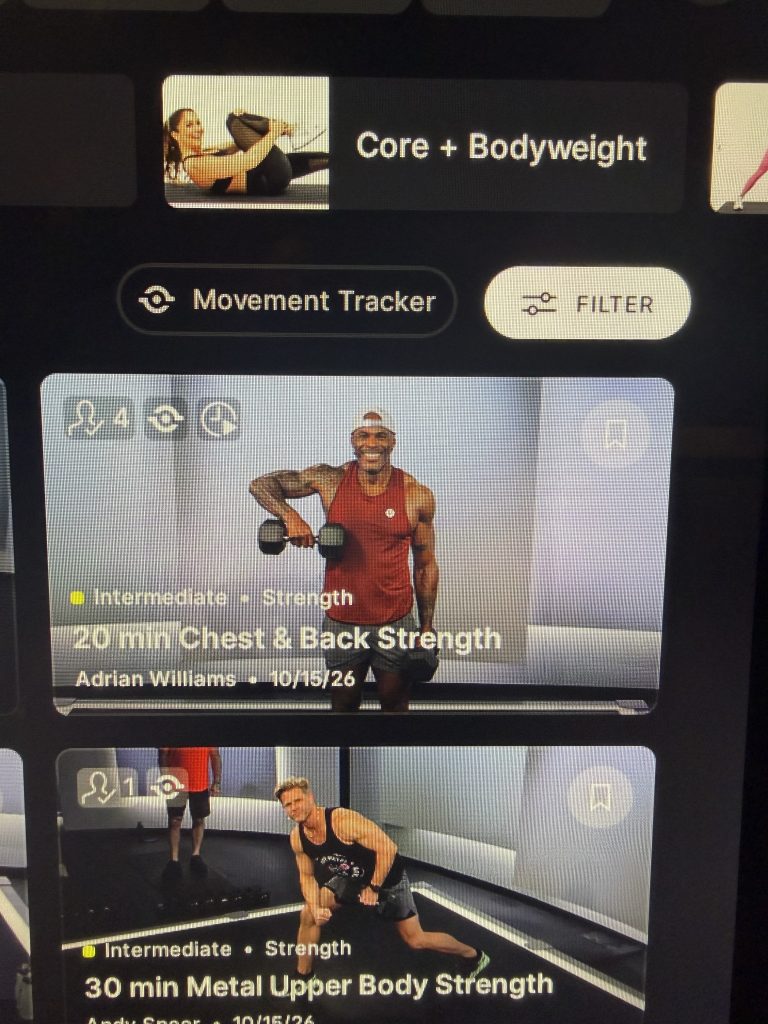
Finding compatible classes is now simpler, too. The Strength page includes a Movement Tracker button beside the Filter option, which narrows the library to classes that work with the camera. Compatible class tiles carry the Movement Tracker icon in the upper left corner, as seen on Adrian Williams’ 20 min Chest & Back Strength and Andy Speer’s 30 min Metal Upper Body Strength, both from October 15, 2026.
The shortcut makes it easier to line up a week of classes with Peloton form feedback, though feedback still applies only to select movements within each class.
The walkthrough puts Peloton form feedback, rep tracking, and weight suggestions in front of members before the first rep, instead of leaving them to decode icons mid-set. For strength training powered by Peloton IQ, that upfront context could make the camera’s coaching easier to trust and act on.
The Clip Out is an independent Peloton news site with reporting, analysis, and community insights. We deliver breaking updates, feature reporting, and expert context on the stories driving the community and the industry. Our weekly podcast offers deeper conversation and perspective, and you can find us on Apple Podcasts, Spotify, iHeart, TuneIn, and YouTube Music. You can also follow us on our socials on Facebook, Threads, Instagram, BlueSky, and YouTube. See something in the Peloton universe that you think we should know? Visit us at theclipout.com and submit a tip.
About the Author: Jen Kern

Latest Podcast
Subscribe
Keep up with all the Peloton news!