How to Cast Peloton to Your TV Fast
Cast Peloton to Your TV
The landscape of connected fitness continues to evolve, and for Peloton members, the options for viewing classes have never been more versatile. While the convenience of a mobile device is undeniable, the limitation of a small screen often hinders form and engagement. This reality has driven a surge in interest surrounding Peloton workout casting, a feature that bridges the gap between mobile flexibility and the large-screen experience of a home gym.
Recent updates to the Peloton platform in 2026 have streamlined how members interact with smart TVs. While native apps on platforms like Roku and Amazon Fire TV offer direct access, they often lack the granular, real-time data integration found on mobile devices—specifically the synchronization with Apple Watch. Casting content from a phone or tablet remains the most reliable method for members who prioritize data integrity alongside a larger viewing format.
This report details the current state of Peloton workout casting, outlining the most effective methods for 2026 and how to optimize your setup for seamless training.
Making The Case To Cast Peloton Over Native Apps
Smart TVs from manufacturers like LG and Samsung, as well as streaming sticks from Roku and Amazon, now host native Peloton channels. However, the native app interface often presents a streamlined, “lite” version of the workout experience. Essential metrics—such as real-time heart rate zones from an Apple Watch or detailed calorie tracking—may not display as prominently, or at all, on the TV application. In addition, Peloton has stopped supporting programs being used on Smart TVs.
Peloton workout casting solves this discrepancy. By running the class on a mobile device (iPhone or Android) and mirroring the display to a television, users retain the robust data tracking of the mobile app while utilizing the TV strictly as a monitor.
This method offers three distinct operational advantages:
- Data Synchronization: iPhone users can keep their Apple Watch connected to their phone, ensuring heart rate and Strive Score data are captured accurately during the session.
- Form Correction: A larger display allows users to observe instructor cues without craning their necks or squinting at a tablet, essential for technical movements in strength training or yoga.
- Feature Access: Certain app-specific features, such as stacking classes or accessing specific programs that may be restricted on TV interfaces due to recent software updates, remain fully accessible via mobile.
Method 1 to Cast Peloton: Apple AirPlay for iOS Users
For the substantial portion of the membership base utilizing iPhones and iPads, Apple AirPlay remains the gold standard for Peloton workout casting. The integration is built directly into the iOS ecosystem, offering low latency and high stability.
System Requirements
To utilize this method effectively, users require an Apple TV (4th generation or later) or a smart TV compatible with AirPlay 2. Most modern smart TVs manufactured after 2019 by major brands like Sony, Vizio, Samsung, and LG support this protocol natively.
Execution Steps
- Network Verification: Ensure both the iOS device and the Apple TV (or AirPlay 2-enabled smart TV) are connected to the same Wi-Fi network. Bandwidth discrepancies can cause lag, so a 5GHz connection is recommended.
- Class Selection: Launch the Peloton app on the mobile device and select the desired workout.
- Control Center Access: Before or after starting the class, swipe down from the top-right corner of the screen (on iPhone X and later) to open the Control Center.
- Screen Mirroring: Tap the “Screen Mirroring” icon (two overlapping rectangles).
- Device Selection: Select the target TV from the dropdown list.
Once connected, the video and audio will transmit to the television, while the iPhone or iPad continues to process the biometric data. This setup ensures that Apple Watch users can view their heart rate on their wrist or phone without interrupting the stream.
Method 2 to Cast Peloton: Google Chromecast for Android and iOS
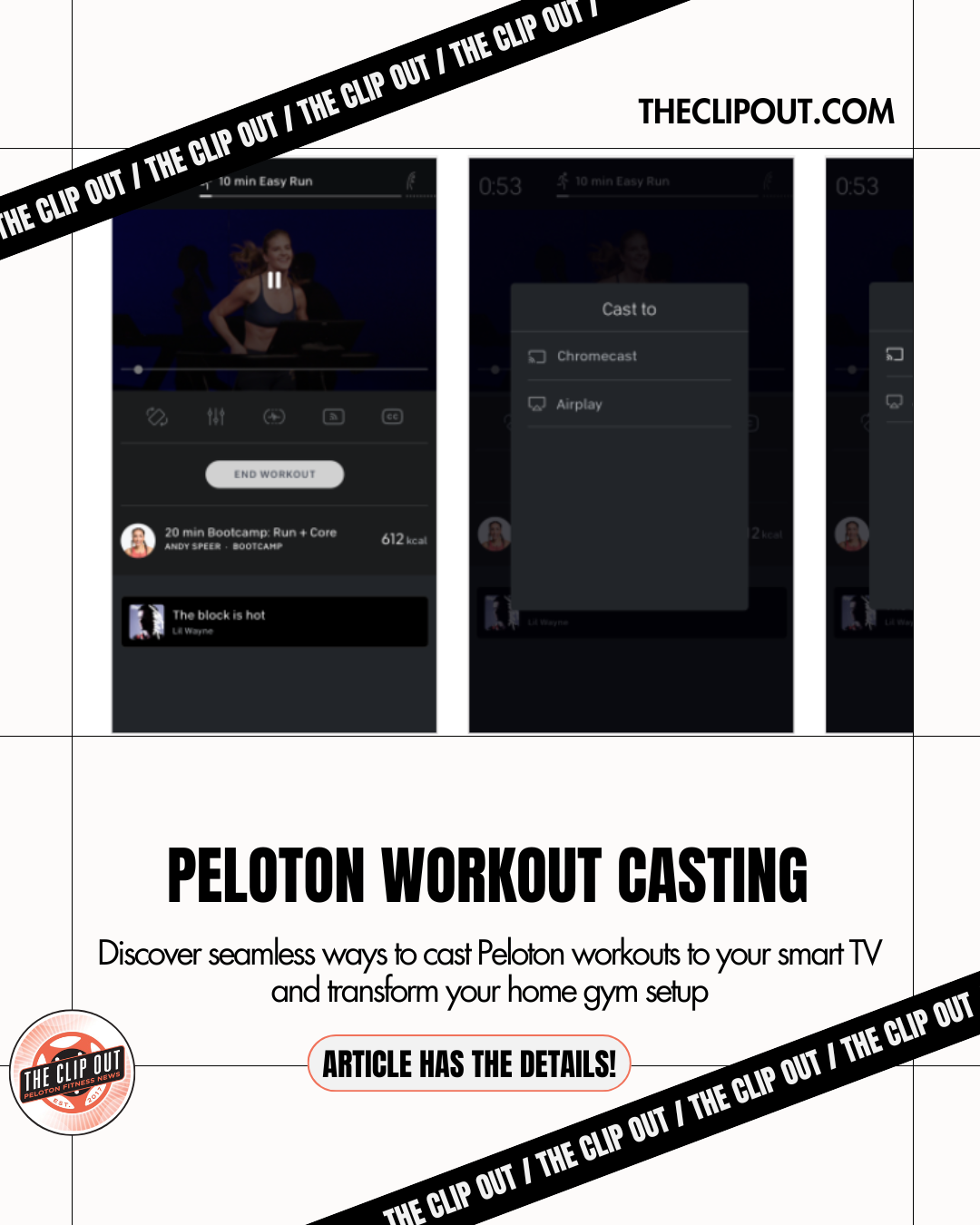
Google’s casting protocol offers a versatile alternative, particularly for mixed-device households or Android users. Peloton workout casting via Chromecast is supported natively within the Peloton app, distinguishing it from the system-level mirroring used by AirPlay.
System Requirements
Users need a Google Chromecast device plugged into the TV’s HDMI port, or a TV with “Chromecast built-in” (common in Android TV, Google TV, and Vizio models).
Execution Steps
- Setup: Confirm the Chromecast and the mobile device are on the identical Wi-Fi subnet.
- App Navigation: Open the Peloton app and navigate to the selected class.
- Initiate Cast: Locate the “Cast” icon (a rectangle with Wi-Fi waves in the corner), typically found in the top-right corner of the workout preview screen or the active workout screen.
- Target Selection: Choose the designated Chromecast device from the available list.
Unlike screen mirroring, this method hands off the video stream URL to the Chromecast device, which pulls the data directly from the internet. This can sometimes result in higher video quality and less battery drain on the controlling mobile device.
Method 3 to Cast Peloton: The Hardwired HDMI Connection
While wireless technology has improved, it remains susceptible to network fluctuations. For users in areas with unstable Wi-Fi or travelers relying on hotel networks, a physical cable connection is the most fail-safe method for Peloton workout casting.
System Requirements
- HDMI Cable: A standard high-speed HDMI cable.
- Digital AV Adapter:
- For iPhone/iPad: A Lightning-to-HDMI or USB-C-to-HDMI adapter, depending on the model.
- For Android: A USB-C-to-HDMI adapter (ensure the device supports HDMI Alt Mode).
Execution Steps
- Connection: Plug the HDMI cable into an open port on the television and connect the other end to the adapter.
- Device Coupling: Insert the adapter into the mobile device’s charging port.
- Input Switching: Use the TV remote to select the corresponding HDMI input source.
- Launch: Open the Peloton app. The screen content will automatically replicate onto the TV.
This method eliminates buffering issues caused by wireless interference, making it a preferred choice for critical sessions where uninterrupted playback is priority number one.
Troubleshooting Common Issues to Cast Peloton
Even with updated 2026 software, users may encounter friction points. Common interruptions to Peloton workout casting typically stem from network configurations or hardware handshakes.
- Lag or Stuttering: This usually indicates network congestion. If using AirPlay or Chromecast, ensure no other heavy bandwidth activities (like 4K gaming or large downloads) are occurring on the network. Switching the router to a less crowded channel can also alleviate this.
- Audio Desync: If the audio trails the video, disconnect the casting session and restart the app. On Apple TV, checking the “Wireless Audio Sync” feature in the settings menu can recalibrate the timing.
- Connection Refused: If the TV does not appear in the device list, toggle the Wi-Fi on the mobile device off and on again. Smart TVs often require a “soft reset” (unplugging for 30 seconds) to refresh their AirPlay or Chromecast discovery protocols.
Future-Proofing Your Setup
As Peloton continues to refine its software, the distinction between hardware ownership and app usage blurs. The 2026 updates suggest a continued emphasis on flexibility, allowing users to curate a hybrid fitness environment. Whether utilizing the seamless integration of AirPlay, the utility of Chromecast, or the reliability of a wired connection, being able to cast Peloton remains a critical skill for maximizing the value of a digital membership. By moving the workout to the big screen, members can focus on what matters: the metrics, the movement, and the results.
Tune in to The Clip Out every Friday to hear Tom and Crystal’s take on this and other hot Pelotopics. We’re available on Apple Podcasts, Spotify, Google Podcasts, iHeart, TuneIn. Be sure and follow us so you never miss an episode. You can also find the show online on Facebook.com/TheClipOut. While you’re there, like the page and join the group. Lastly, find us on our YouTube channel, YouTube.com/TheClipOut, where you can watch all of our shows.
See something in the Peloton Universe that you think we should know? Visit theclipout.com and click on Submit a Tip!
About the Author: Angela D. Mitchell

Latest Podcast


Subscribe
Keep up with all the Peloton news!